 saRa
How to add a subscriber
Steps
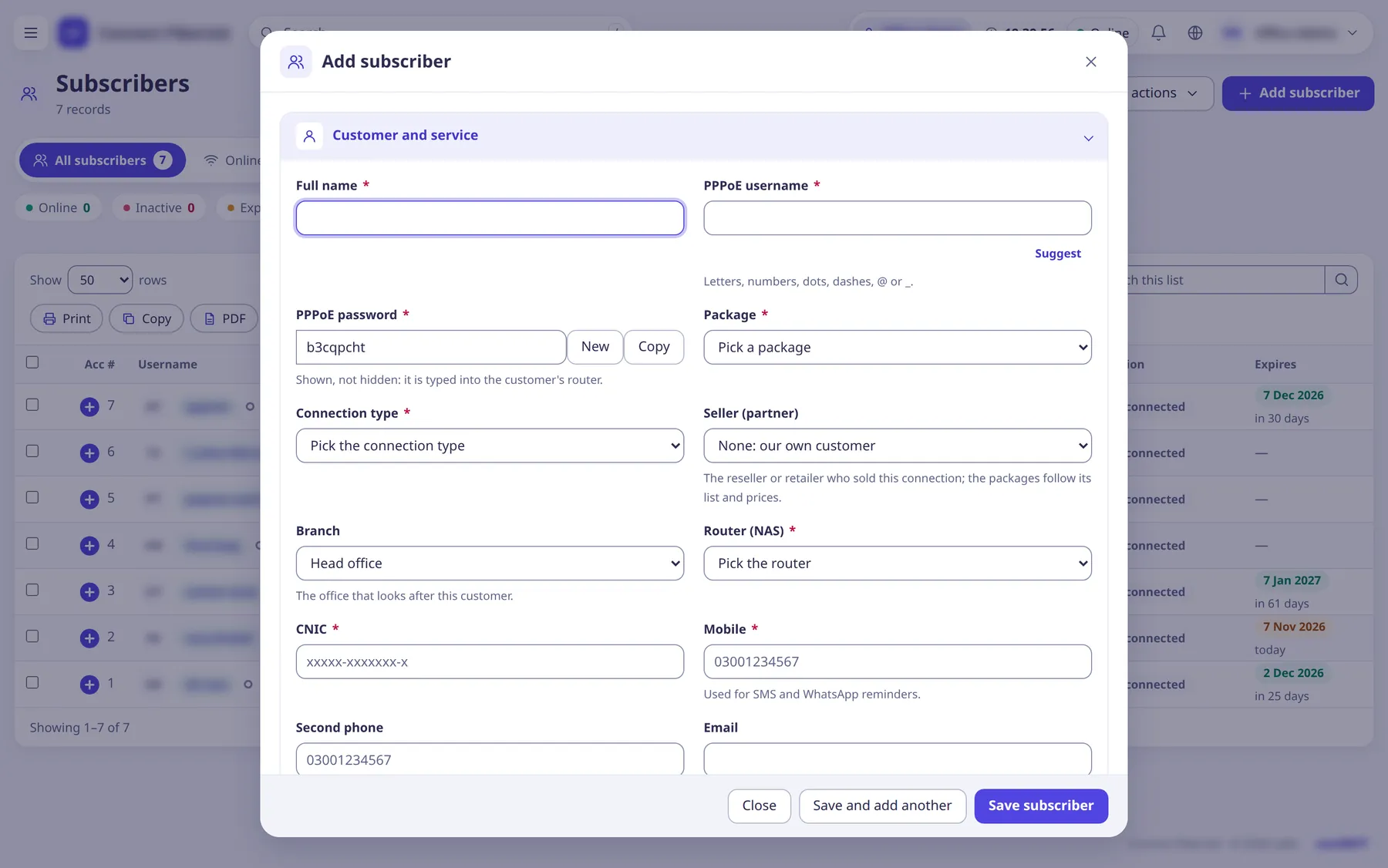
Open Subscribers →
All subscribers
and clickAdd subscriber
(large popup).On a partner's page the button reads 'Add subscriber for <partner>'. Staff of a branch add to their own branch automatically.
Under
Customer and service
enterFull name
, thePPPoE username
(the form checks it live and saysFree
orNot available.
;Suggest
proposes one) and thePPPoE password
(New
makes one,Copy
copies it).The password is shown, not hidden, because it is typed into the customer's router. Usernames use letters, numbers, dots, dashes, @ or _.
Pick the
Package
,Connection type
, optionallySeller (partner)
(defaultNone: our own customer
) andBranch
, and theRouter (NAS)
.When a seller is picked, the package list follows that partner's packages and prices.
Enter
CNIC
andMobile
(used for SMS and WhatsApp reminders), optionallySecond phone
andEmail
; the address goes in the location part of the form.Location and fibre details can be added now or later with
Location and fibre
on the profile.Optional
Connection details
:Static IP
(empty = an address from the package's pool),Logins at the same time
,MAC lock
andMAC address
.With MAC lock on and the MAC empty, the next login's device is locked in.
Under
Start service now
leaveActivate now
on to start service at once: choose the number ofPeriods
, how thePayment received as
(Cash, Bank transfer or later) and optionallyPrint a receipt (80 mm)
.Switched off, the subscriber is saved as
Not activated
and has no service until renewed.Click
Save subscriber
(the button readsSave and activate
whenActivate now
is on), orSave and add another
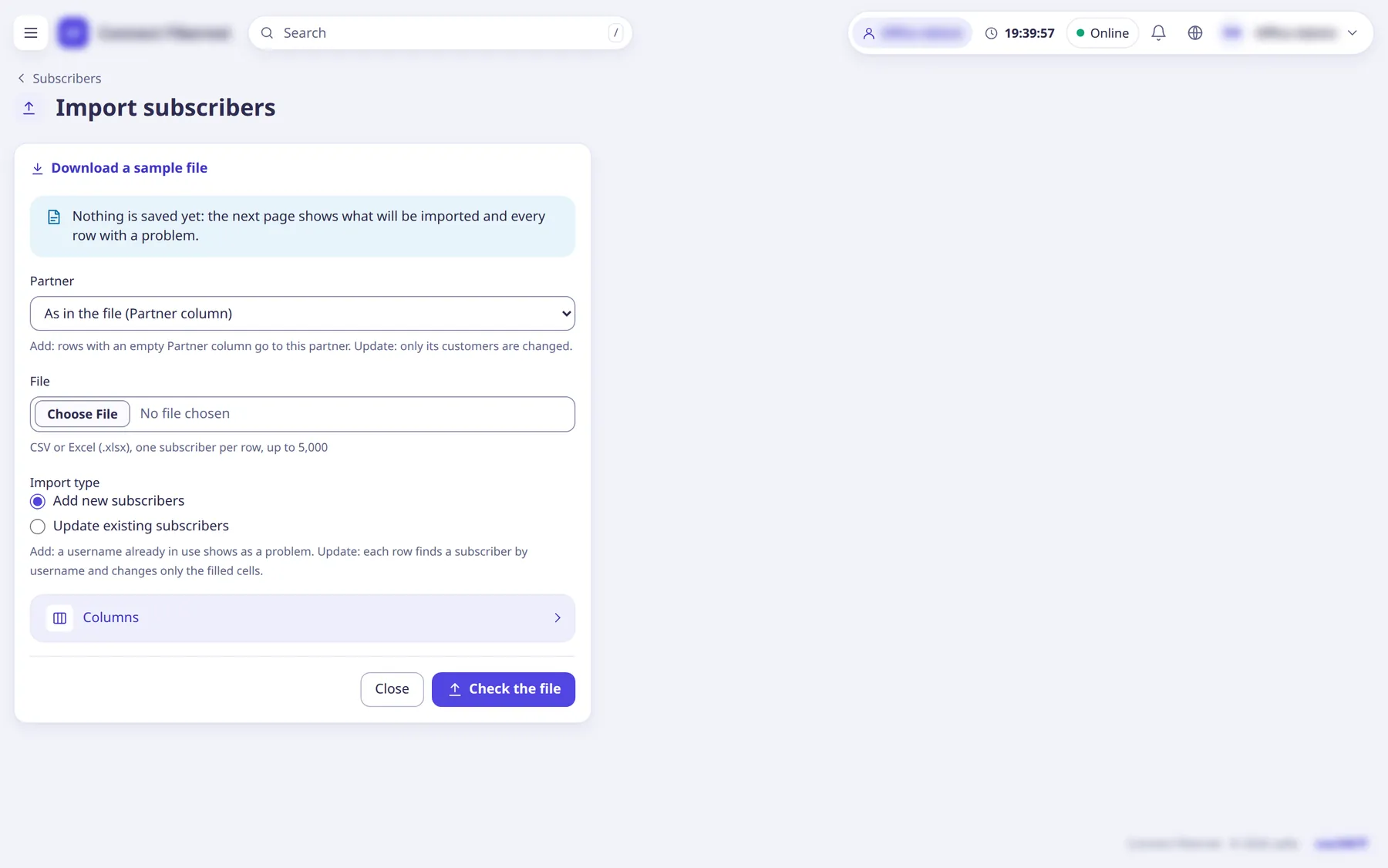
.To add many at once use Subscribers →
Import
(CSV or Excel, up to 5,000 rows, with a sample file and a check step before anything is saved).
What saRa does
saRa creates the subscriber and its RADIUS login (FreeRADIUS reads it from the database at once). With Activate now
it also runs a renewal in one transaction: invoice, payment, ledger entry, new expiry and the renewed
message, then opens the profile showing the invoice number. The customer can sign in to the customer portal with the PPPoE username (first time with the internet password, then choose a portal password).
Good to know
- Import mode
Update existing subscribers
changes only filled cells; imported expiry dates are set as already paid and make no invoices. - A subscriber's profile page has tabs and a
More
menu for notes, documents, change password / username, IPv6 prefix, Reset MAC, Give grace, New invoice and so on.