 saRa
How to log and resolve complaints (tickets)
Steps
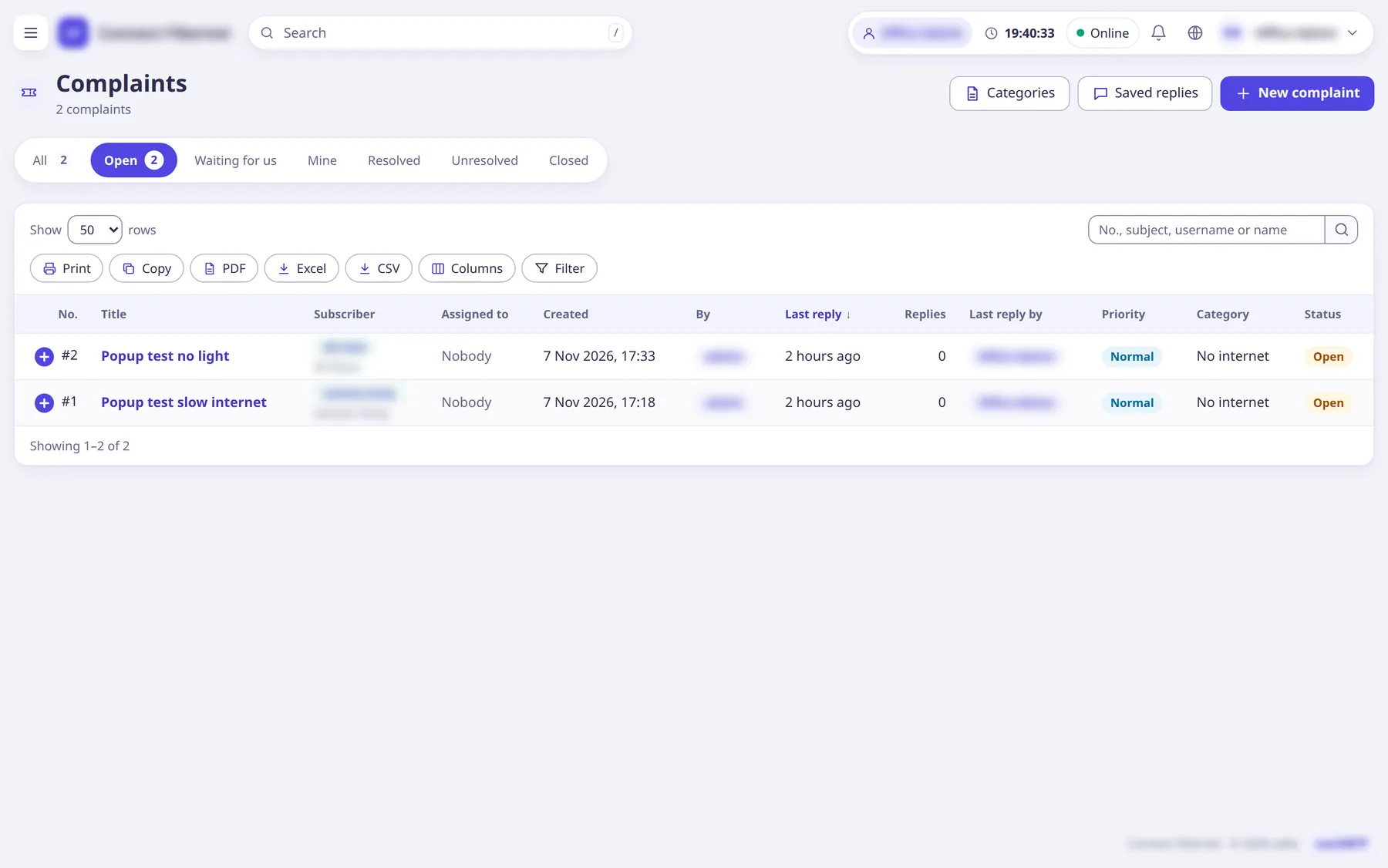
Open
Tickets
→Complaints
. Filters: Search,Customer (username)
,Assigned to
,Priority
,Category
,Status
,Branch
.Complaints also appear in the Inbox together with chats.
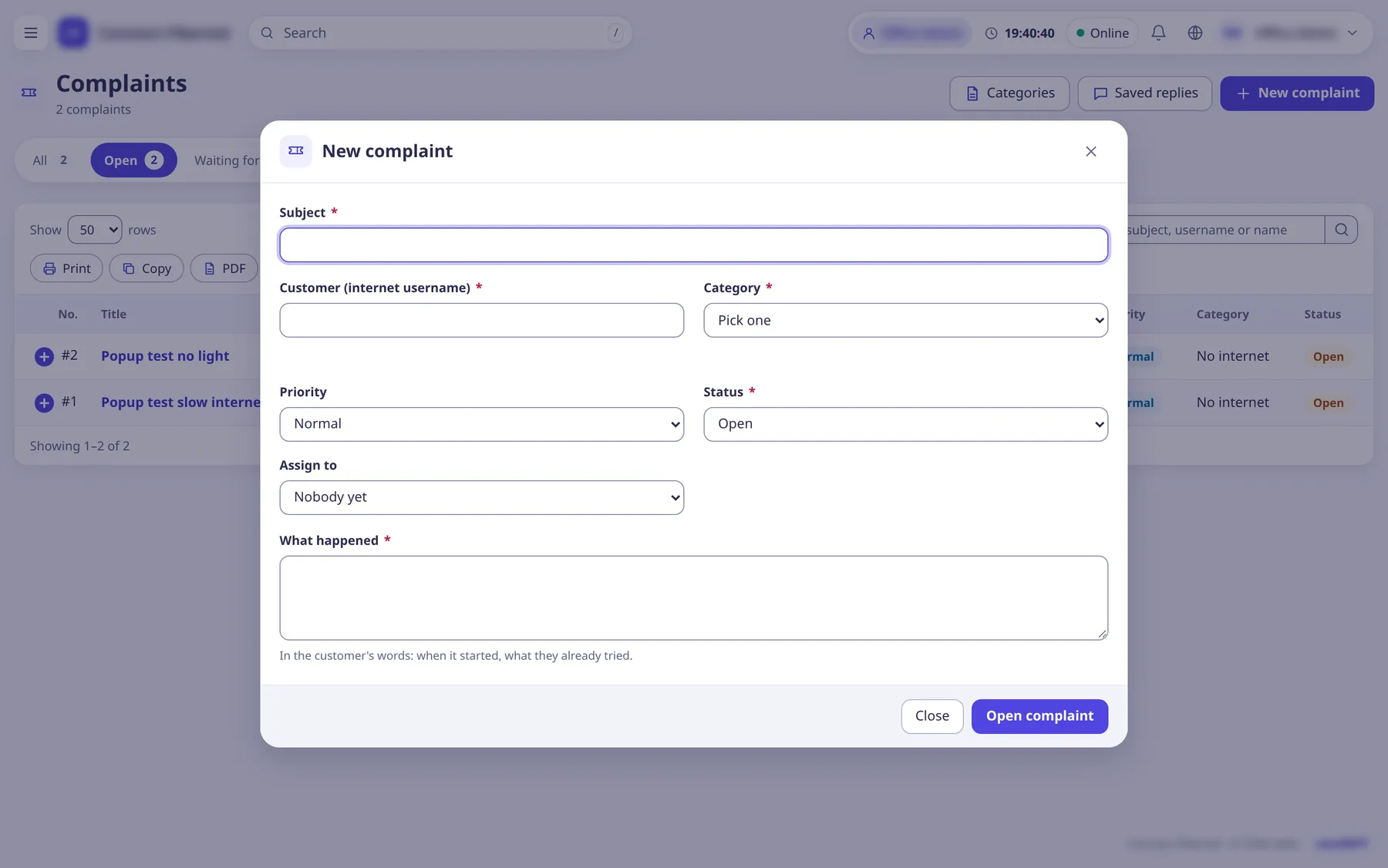
Click
New complaint
(or useNew complaint
in a subscriber's More menu). EnterSubject
, theCustomer (internet username)
,Category
,Priority
,Status
,Assign to
andWhat happened
, then clickOpen complaint
.Categories: No internet, Slow internet, Keeps disconnecting, Billing or payment, Router or cable, Shifting or new connection, Other. Priorities: Low, Normal, High, Urgent.
Open the complaint to read the thread, write a
Reply
(theThen
choice can change the status), assign it, and set the status: Open, Resolved, Unresolved or Closed.Internal notes are staff only and are never sent to the customer.
When it is fixed choose Resolved or Closed. The customer sees
Resolved: is it fixed?
and can press 'Yes, it's fixed: close it' or write again to reopen.A customer can have at most 3 open complaints at once.
What saRa does
The customer gets the automatic messages Complaint opened
, Complaint: staff reply
and Complaint resolved or closed
(if switched on) and sees the thread in the portal and the Android app. Closed complaints reopen if the customer writes again.
Good to know
- Customers open complaints themselves in the portal.
- A WiFi-password request that cannot be done automatically becomes a complaint.