 saRa
How chat works and how customers use the portal
Steps
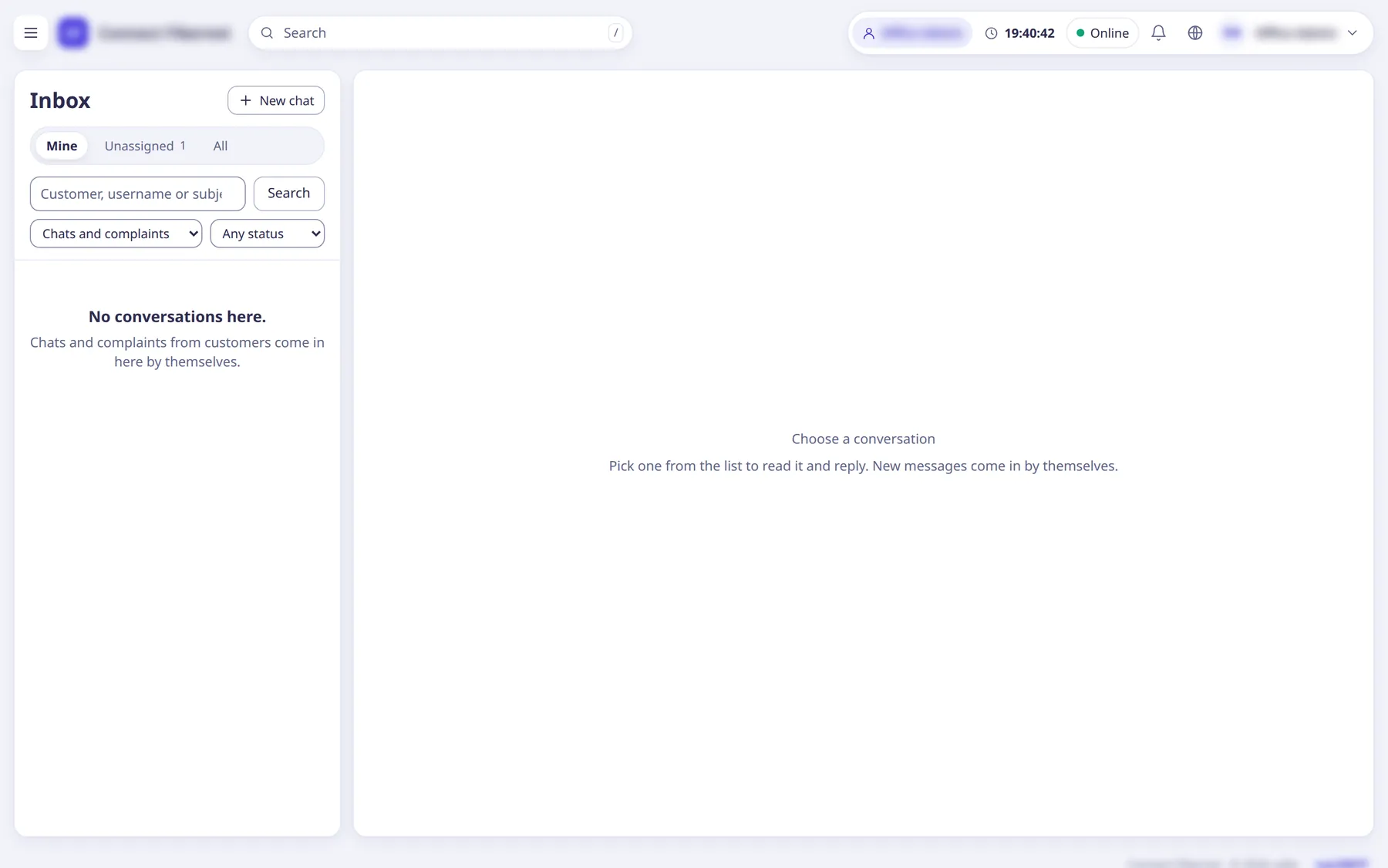
Staff open
Inbox
. Chats and complaints come in by themselves; filter withShow
, chats or complaints, and status, or searchCustomer, username or subject
.Unassigned conversations are visible to everyone with “Chat with customers (own, assigned and unassigned conversations)”; you also see ones assigned to you or that you started.
Open a conversation, press
Take it
orAssign
(choose Me, a staff member,A role (anyone in it)
orNobody (unassigned)
), type inWrite a reply
and press Enter to send (Shift+Enter makes a new line).Tick
Internal note (staff only)
for a note the customer never sees; attach aPhoto or PDF
; useInsert a saved reply or template
.To start a chat yourself click
New chat
, enter the 'Customer's username' and aFirst message
, thenStart chat
(or useChat in inbox
on a subscriber's More menu).The message reaches the customer's portal at once.
Customers sign in at /portal/login with their
Internet username
(first time: the internet/router password; they then choose a portal password) and useMessages
to pick whom to talk to (Anyone available
or a person marked online).The portal menu has My account, Messages, Bills, Pay, Complaints, Password, plus a WiFi page if their router is linked.
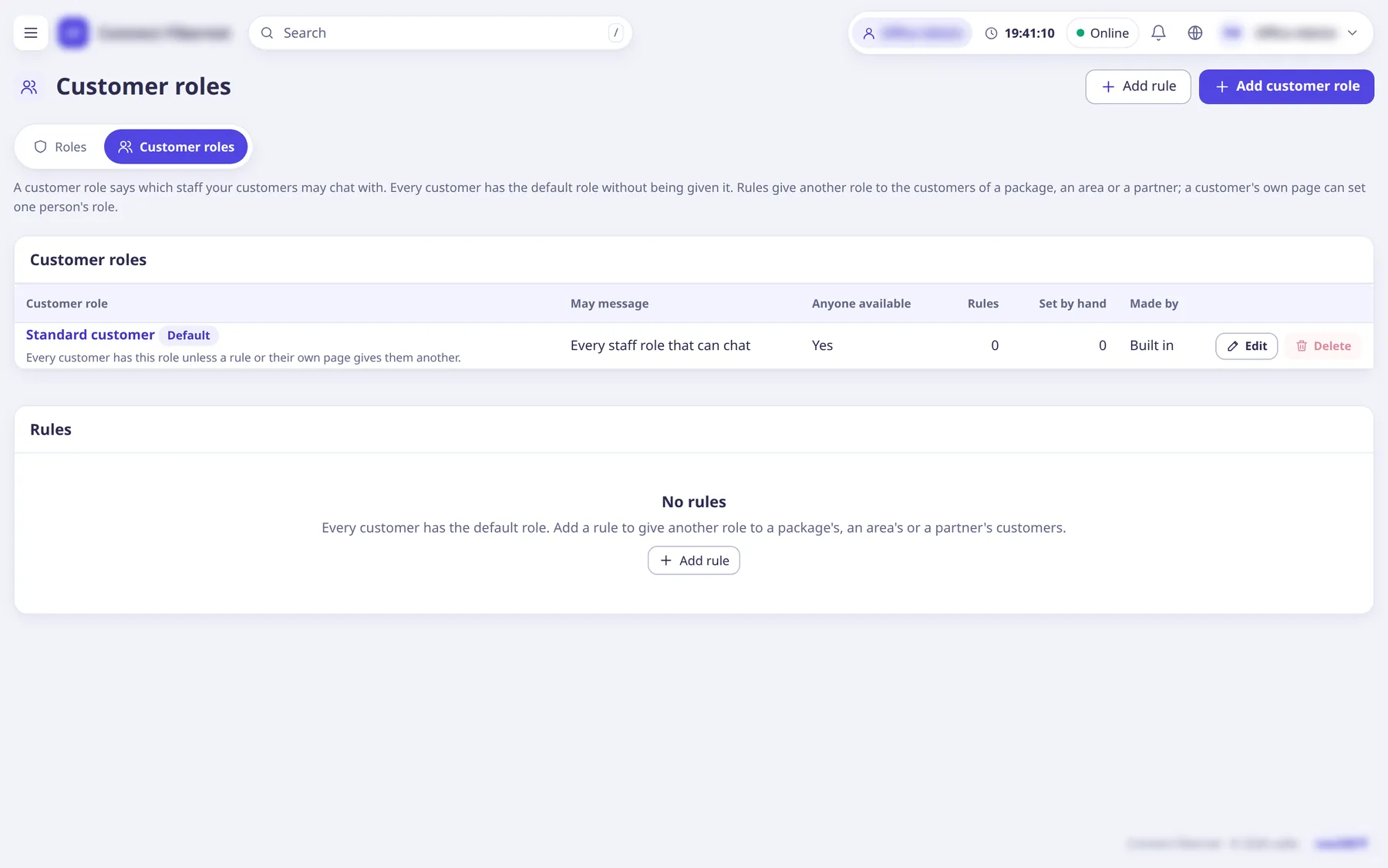
Which staff a customer may chat with is controlled by Roles →
Customer roles
:Add customer role
, rules by package, area or partner, and a per-customer choice on the subscriber page.Every customer has the default customer role without being given it.
What saRa does
Messages are delivered live (server-sent events) to the inbox, the portal and the Android app, with read ticks (Sent / Seen) and optional sounds (Sounds
switch). Row-level security means a customer sees only their own conversations and never an internal note. Everything is stored in saRa's own PostgreSQL; no outside chat service is used.
Good to know
- In the portal customers also pay online (JazzCash, bank card through Meezan, and any other gateway the ISP switched on), see bills and data use, and use Quick Pay without signing in at /pay/<isp code>.
- Notices (SMS and notices →
Notices
) show as banners in the portal and app for chosen days. - Sounds for chat pings and notice chimes are per browser (added 7 Nov 2026).