 saRa
Captive portal
The page people see when they join your MikroTik hotspot. Save, use the Download login.html button on the panel head, upload the file to the router's hotspot folder (Files > hotspot), and in the hotspot server profile allow "HTTP PAP" login. Download it again after every change.
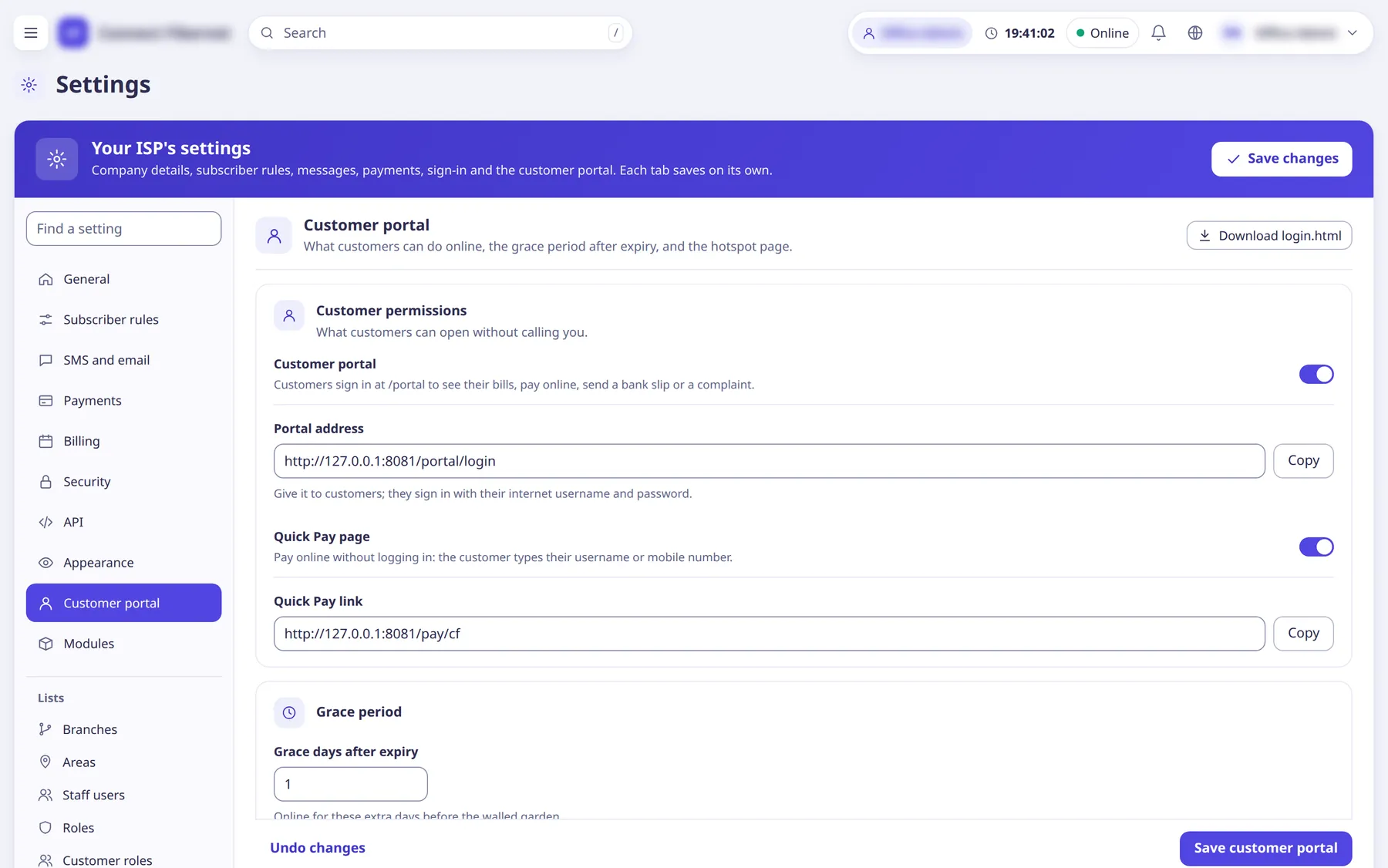
The settings
Title
TextShown at the top of the hotspot page.
- Default
- the ISP's name (max 80 characters)
- When to change
- To change the heading.
Message
TextA short message under the title.
- Default
- empty (max 400 characters)
- When to change
- For notices such as support hours.
Help phone
TextShown as "Help: <number>" at the bottom of the hotspot page.
- Default
- empty (max 30 characters)
- When to change
- So customers can call you.